The window
Bella ScreenRec has one small control window. Everything you set there is remembered for the next start.
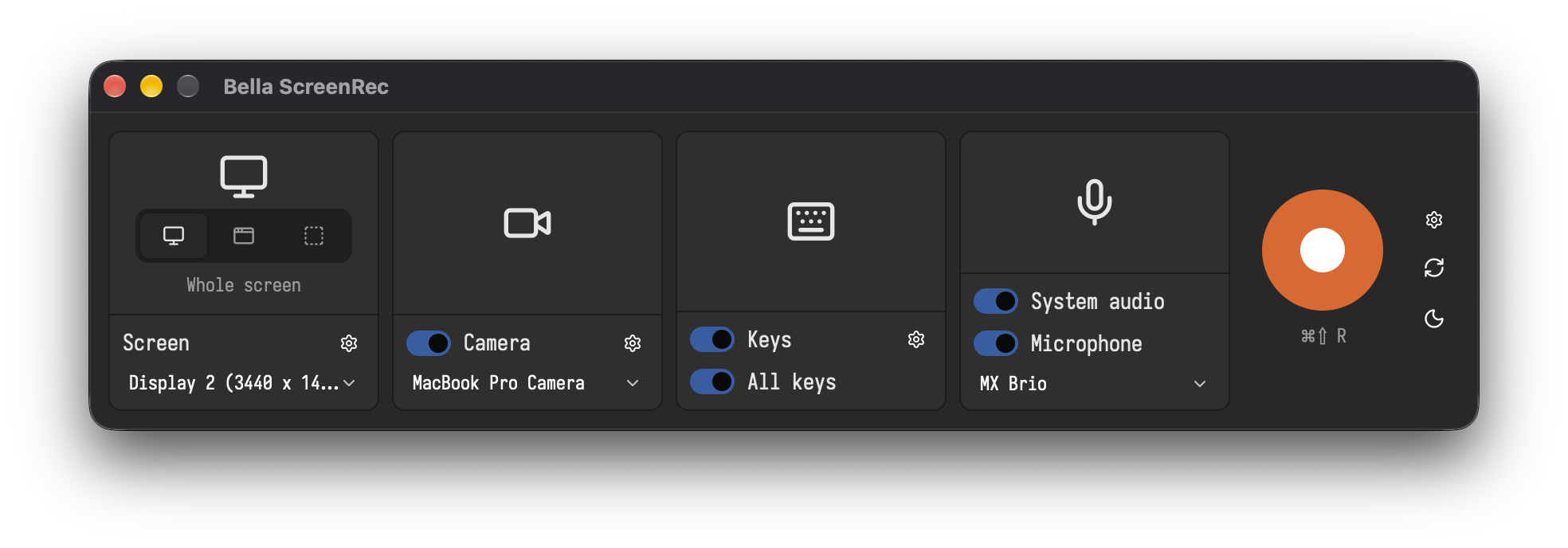
The tiles
From left to right:
| Tile | Big icon | Below it |
|---|---|---|
| Screen | what to record: the three small buttons choose Screen, Window or Region | the screen, the window or the region; see Recording |
| Camera | the camera, lit when it is on | the switch, and the camera to use; see Camera overlay |
| Keys | the keyboard, lit when it is on | the switch for the key overlay and All keys; see Key overlay |
| Audio | the microphone | System audio (the sound of your computer), Microphone and the microphone to use |
The gear in the corner of a tile opens its settings: the codec and frame rate for the Screen tile, shape and background for the camera, size and display time for the keys.
The record button
The orange button starts a recording; the hotkey below it, ⌘⇧R, does the same from any app. Hover over it to see what it will do. While a recording runs, the same button and the same hotkey stop it. See Recording.
The buttons on the right
| Button | Does |
|---|---|
| Gear | the general settings: the output folder, updates, the privacy pages, License and About |
| Arrows | reads the screens, windows, cameras and microphones again, for example after you plugged in a camera |
| Moon, sun or screen | the look: dark, light, or following macOS; each click takes the next one |
About
About in the general settings shows the version, the license holder and the licenses of the open-source parts and of the Iosevka font that Bella ScreenRec is built with.