Key overlay
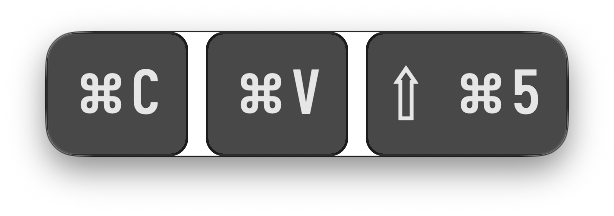
The key overlay shows the keys you press as badges in a small floating window above all other windows, so viewers see which shortcut you used. Switch it on in the Keys tile.
Which keys
By default only shortcuts and special keys show:
- combinations with
⌘,⌃or⌥, such as⌘ Cor⇧ ⌘ 5 - special keys alone:
⎋Escape,⏎Return,⇥Tab,⌫Delete, the arrows,F1toF12, Home, End, Page Up and Page Down
Plain typing does not show, so a password or a private message you type during a recording stays private. All keys shows every key, also letters and digits.
The same combination pressed again counts up (⌘ Z x3). Up to three combinations show side by side; each fades out a moment after you pressed it. While nothing was pressed, the overlay shows Keys so you can find and move it; that label hides during a recording.
Move and resize
- Move: drag it anywhere.
- Resize: drag its right edge, or scroll on it.
Settings
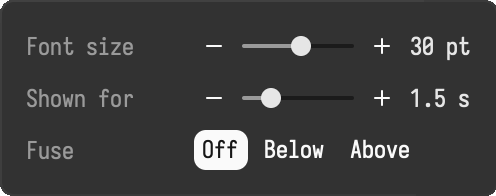
The gear of the Keys tile:
| Setting | Does |
|---|---|
| Font size | the size of the keys, 10 to 48 pt (30 pt by default) |
| Shown for | how long a combination stays after you pressed it, 0.3 to 5 seconds (1.5 s by default) |
| Fuse | Off: a window of its own. Below or Above: a bar under or over the camera |
Permission
macOS lets an app see the keys typed in other apps only with Input Monitoring. Allow it when asked, then restart Bella ScreenRec. Without it the Keys tile shows a hint with a button to the right page of System Settings. Bella ScreenRec only shows the keys; it never stores or sends them.