Camera overlay
The camera overlay shows you in a small floating window above all other windows, on every desktop. Switch it on in the Camera tile and choose the camera below the switch.
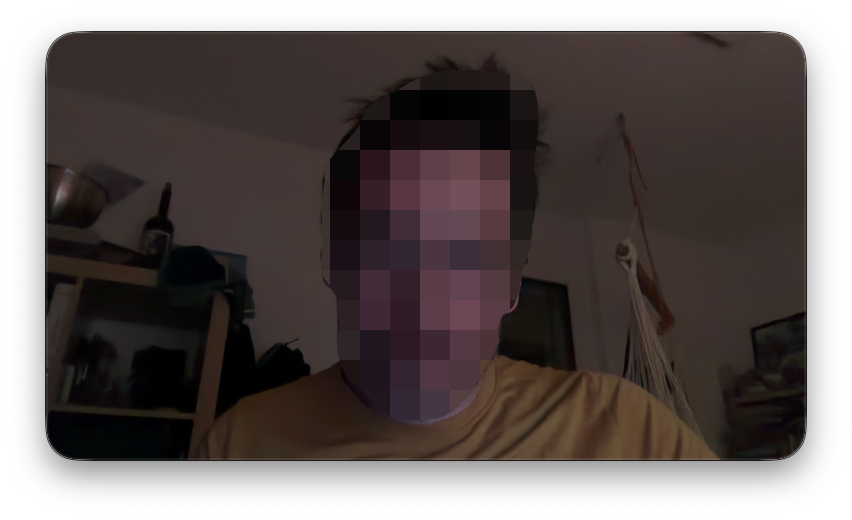
Move and resize
- Move: drag it anywhere.
- Resize: drag its right edge, or scroll on it. Its shape keeps its proportions.
Place and size are remembered.
Settings
The gear of the Camera tile:
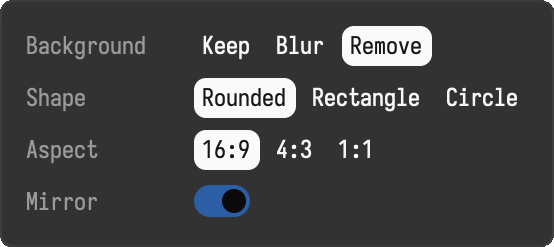
| Setting | Choices |
|---|---|
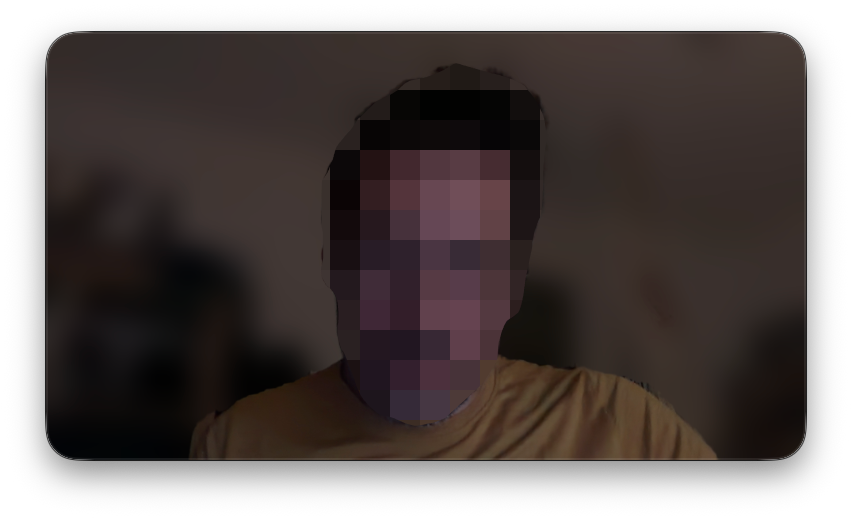
| Background | Keep the room as it is, Blur it (the default), or Remove it so only you stay, on a transparent background |
| Shape | Rounded rectangle, Rectangle or Circle |
| Aspect | 16:9, 4:3 or 1:1 for the rectangles; the circle is always round |
| Mirror | on: you see yourself as in a mirror, which feels natural while you point at things |
| Keep | Blur | Remove |
|---|---|---|
|
 |
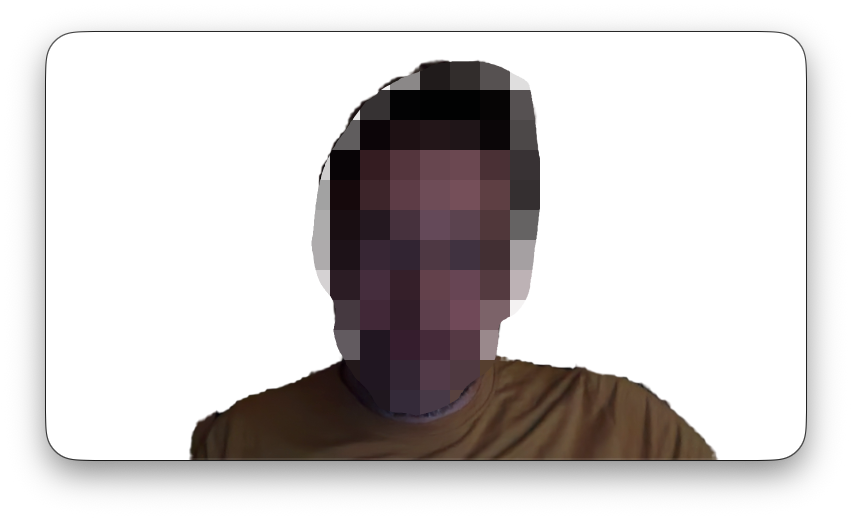 |
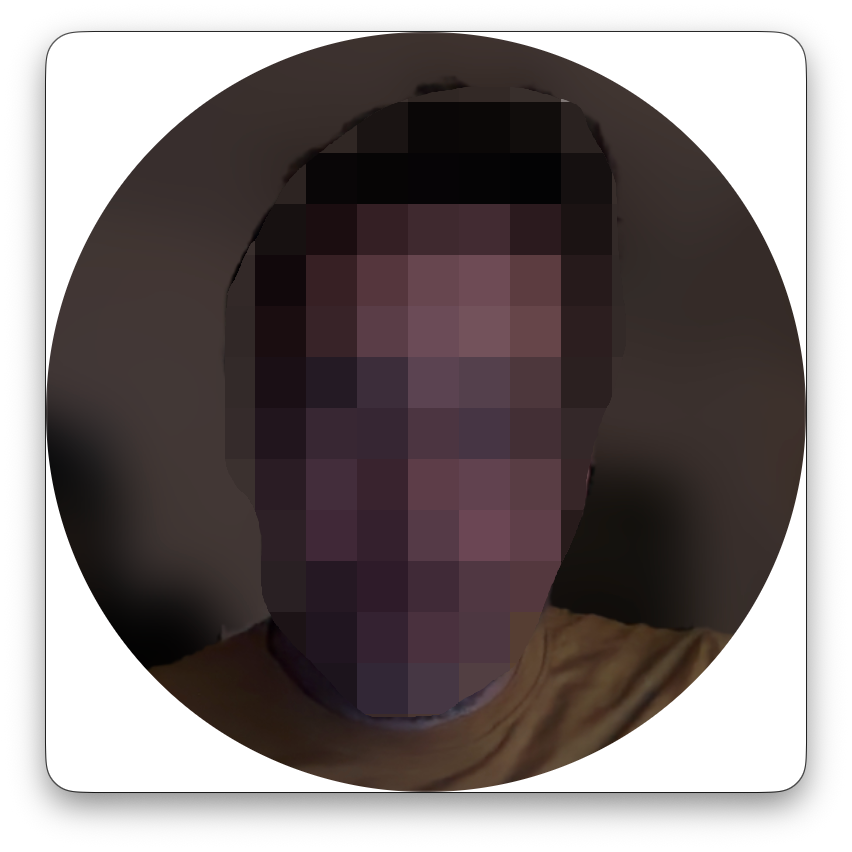
Blur and removal find the person in each picture on your Mac; no picture leaves the computer. They work best with light on your face and a calm background.
Camera and keys in one window
Fuse in the gear of the Keys tile puts the key overlay into the camera window, as a bar Below or Above the camera. Then both move together. Off makes them two windows again, each at its own place.
When the camera fails
A camera that is in use by another app, unplugged or behind a closed lid shows Camera unavailable in the overlay. Click it to try again, or choose another camera. A camera that fails never takes the rest of Bella ScreenRec down: the camera runs in a helper process of its own.