Recording
What to record
The three small buttons in the Screen tile choose what to record:
| Choice | Records | Overlays in the video |
|---|---|---|
| Screen | a whole screen, chosen below the buttons | yes, wherever they are on that screen |
| Window | one window, chosen from the list of open windows | no: the tile says Overlays will not be shown |
| Region | a rectangle you draw on a screen | yes, when they are inside the rectangle |
For a tutorial with camera and keys, use Screen or Region. A window recording only takes that window's own picture, without anything that lies above it.
Picking a region
Choose Region, then Pick region… and the screen. The screen darkens; drag a rectangle over the part you want. The size shows in pixels while you drag. Drag again to start over, Enter takes the rectangle, Esc cancels. Very small rectangles (under 64 × 64 pixels) are refused. The region is remembered for each screen.
Sound
The Audio tile records two sources into the video's one sound track:
- System audio: what your computer plays, such as a video or a notification sound.
- Microphone: your voice, from the microphone chosen below the switch.
Switch off what you do not want in the video.
Start
Press the record button or ⌘⇧R. The control window hides, so it is never in the video, and a countdown 3, 2, 1 shows in orange on the screen being recorded. ⌘⇧R or Esc during the countdown cancels it.
While recording:
- The menu bar shows a Bella ScreenRec item with the time recorded so far; it has Stop recording.
- A region is marked by a thin orange frame just outside it, so the frame is not in the video.
- The overlays stay where you put them. The key overlay hides its Keys label, so only pressed keys show.
Stop
Press ⌘⇧R, or choose Stop recording in the menu bar. Bella ScreenRec saves the file, shows it in Finder and brings the control window back.
Without a license every recording stops by itself after 20 seconds, and the file is kept. See License.
If a recording breaks off, for example because the recorded window was closed or a screen was unplugged, the part recorded so far is kept and the control window says what happened.
Where recordings go
Recordings are saved in your Movies folder as ScreenRec 2026-10-29 14-05-09.mp4, with the date and time of the start. A name that already exists gets (2), (3) and so on, so nothing is overwritten. The gear next to the record button chooses another folder (Output, Choose…). A folder that cannot be written to is reported before the countdown, not after the take.
Quality
The gear of the Screen tile sets:
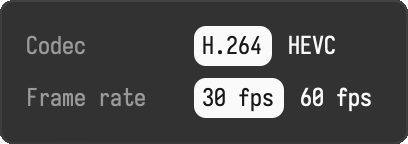
| Setting | Choices |
|---|---|
| Codec | H.264 plays everywhere; HEVC makes smaller files at the same quality |
| Frame rate | 30 fps for most tutorials; 60 fps for fast motion such as scrolling or games |
The Mac's video hardware encodes the video, so recording takes little power. The video has the size of the screen or region in pixels; the mouse pointer is recorded.